How to Edit a Loom Video, And the Four Edits It Won't Let You Make

Published: 2nd August 2026
Yes, you can edit a Loom video, but only in four specific ways. You can trim the start and end, cut a section out of the middle, stitch separate recordings together, and, on the right plan, let Loom's AI strip out your ums and dead air. Anything beyond that. Cropping the frame, zooming into a detail, blurring something you forgot to hide. means re-recording or exporting to another tool. Here's exactly how to do each of Loom's four edits, and what to do once you hit the wall.
Can you edit a Loom video?
Yes. Loom videos can be edited directly inside Loom's web-based editor, using non-destructive trimming, clip splitting, stitching, and AI-powered filler word removal. You'll need a paid plan to access any of it. Business, Business + AI, or Enterprise. The free Starter plan doesn't include editing at all. Below is exactly how each option works, followed by what Loom still won't let you touch.
How to edit a Loom video: step by step
Loom's video editing features break down into four moves, and once you know where to click, each one takes under a minute.

Trim the beginning and end
This is the first edit most people reach for, cutting the five seconds of dead air before you start talking, or the "wait, did I actually stop recording?" moment at the end.
- Open the video's share page and look at the panel on the right.
- Click Edit, then Edit your video, to open the waveform editor.
- Find the trim handles at the far left and right of the timeline.
- Drag them inward to where you want the video actually to start and end.
- Use the Fit tool to zoom into the waveform if you need frame-level precision.
- Click Save Changes.
That's it. Loom processes the change on its servers, and the same share link now plays the trimmed version. Nothing else changes.
Cut a section from the middle
This is the one people search for after they've said something wrong, sneezed mid-sentence, or gone quiet for 40 seconds trying to remember what a button does.
- From the side panel, click Edit, then Trim and Stitch.
- Move the playhead to where the unwanted section starts.
- Click Split to break the timeline into two clips.
- Drag the inner handles across the section you want gone, or click and drag directly over the waveform and hit delete.
- Click Save Changes. The removed section turns gray in the timeline, and timestamps update automatically.
You can apply up to 500 splits on a single file, so unless you're cutting together a feature-length walkthrough, you won't hit the ceiling.
Stitch two recordings together
Stitching combines separate Loom recordings into one file, useful for multi-part tutorials, or when you recorded an intro separately from the actual walkthrough.
- Open the base video's share page.
- Click Edit, then Edit and enhance video.
- Click Add a clip.
- Choose a video from your recent recordings, search by keyword, or paste a Loom URL directly.
- Reorder clips using the three-dot menu on each thumbnail — Move the clip left or Move the clip right.
- Click Finish.
One thing worth knowing: viewers can only stitch into your video if you've enabled that under Settings, Audience, Stitch. By default, it's creator and editor only.
Remove filler words and silences with AI
This one needs Business + AI specifically. It's not included on standard Business.
- Open the video and go to the Edit panel.
- Toggle Remove filler words on.
- Toggle Remove Silence on.
- Pick your filtering level: just ums and ahs, or a broader pass that also catches rambles and repeats.
- Let Loom reprocess the video and resync the transcript.
It's genuinely useful for cleaning up a recording without doing it over. Worth reviewing the first result, though. The AI occasionally trims a little too close to a natural pause.
Editing in the Loom web editor vs the desktop app
Here's something that trips people up: there's no separate desktop editor for editing video online; Loom just isn't built that way. If you record with the Mac or Windows app and click Edit, Loom opens the web editor in your browser. Every actual edit — trim, split, stitch, AI cleanup — happens in the cloud. The desktop apps and the Chrome extension are capture tools; editing itself always happens on loom.com.
The four things Loom can't do
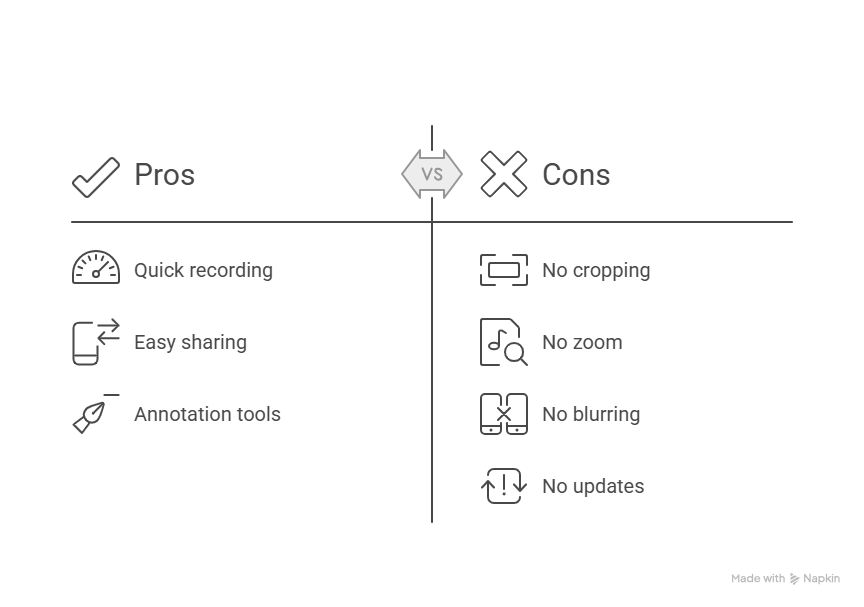
Let's be honest about this part, since it's probably the reason you're reading this in the first place. Loom is built for speed, not precision, and that trade-off shows up the moment you need to fix something specific.
You can't crop or resize the frame
No matter what plan you're on, you cannot crop a Loom video once it's recorded. What Loom actually offers is Custom Size recording, a capture box you draw before you hit record. Once the video exists, its dimensions are locked. If you forgot to set custom size and your webcam bubble is covering half the screen, your only real fix is exporting to another editor or recording again.
You can't zoom into a detail
If something you read online says Loom has a zoom feature, that's technically true and also not what you're picturing. Loom's zoom tool only magnifies the audio waveform to help with precise trimming. It doesn't zoom into the video image itself. If a checkbox or a line of text is unreadable at normal resolution, Loom can't fix that after the fact. Full screen is all your viewer gets.
You can't blur something you forgot to hide
Blurring in Loom only happens during capture, through the Chrome extension, on Business plans and up. You click the blur icon mid-recording, hide the sensitive element, and resume. Once the video is finished and uploaded, there's no way to blur anything retroactively. A visible API key or customer name in a finished recording means starting over. Text, arrow, and box overlays are a separate feature and can be added after recording, but only on Business + AI or Enterprise, and they're for annotation, not concealment.
You can't update the content when your product changes
This is the quiet one, and it's the reason most teams end up with a graveyard of outdated Looms. A recording is a fixed file. When your UI changes next sprint, a button moves, a menu gets renamed, the video is now wrong, and no editing feature updates it for you. Your only options are cutting the outdated section or re-recording the whole thing. Sales teams hit this same wall constantly, and it's worth reading if you want the fuller picture; see our full Loom alternatives guide.
How to edit a screen recording outside Loom
When you need something Loom genuinely can't do, exporting to another tool is usually faster than fighting the platform.
On Mac
Download the MP4 from the video's share page, click the three dots above the player, then click Download. For a quick trim, open it in QuickTime Player and press Command+T. For cropping a screen recording on Mac or covering something up, import the file into iMovie, use the crop tool to resize the frame, and drop a solid shape over anything you need to hide on a second track. One caveat: if the original recording came from the Chrome extension or a free-plan account, you're capped at 720p or 1080p, so don't expect 4K on export.
On Windows
Windows 11 ships with Clipchamp, which covers most of the same ground. Import the downloaded MP4, use the crop tool to trim the frame, and switch the aspect ratio if you're repurposing the clip for social. Add text or captions from the built-in panel, then export, free at 1080p, or 4K if you're on Clipchamp Essentials. If this is a route you're already going down, editing in Clipchamp covers it in more depth.
With a full editor
If exporting and fixing has turned into a weekly habit, a dedicated screen recorder with a video editor built in might be worth the switch. Camtasia gives you a real multi-track timeline, cursor zoom, and post-recording blur, better suited to structured training content than quick fixes. Descript takes a different approach, letting you edit video by editing a transcript, which feels strange for about five minutes and then becomes hard to give up.
Comparison: Loom vs. Camtasia vs. Puppydog
Or: build the demo instead of editing the recording
If you've read this far and you're re-editing the same walkthrough for the third time this quarter, the actual problem probably isn't the editor. It's that you're maintaining a video when what you need is something that doesn't go stale every time your product ships an update.
That's the gap Puppydog is built to close. Instead of a fixed recording, you get a living demo built from your screen recordings or screenshots. When a step in your product changes, you update that one step, and it propagates to every link you've already shared. No re-recording, no timeline, no exporting to iMovie because someone renamed a button.
If you're the person who keeps getting pinged to "just fix that one screen" in a Loom video, it's worth seeing what building an interactive demo instead looks like for your workflow.
Frequently asked questions
Can Loom videos be edited?
Yes. Loom videos can be edited inside Loom's web-based editor using non-destructive trimming, clip splitting, stitching, and AI-powered cleanup. Editing requires a paid plan. Business, Business + AI, or Enterprise.
How do I trim a Loom video?
Open the video's share page, click Edit, then Edit your video, and drag the trim handles at the start or end of the waveform inward. Click Save Changes when you're done. To cut something from the middle instead, use Trim and Stitch and the Split tool.
How do you edit Loom videos together?
Use Loom's Stitch feature. Open the base video, click Edit, then Edit and enhance video, and select Add a clip to bring in a second recording. Reorder clips with the three-dot menu, then click Finish.
Can I crop my video on Loom?
No. Loom doesn't support cropping or resizing the frame after a recording is made. The closest option is Custom Size, which lets you set the capture area before you record, not after.
Can you edit a Loom video after sharing it?
Yes. Edits update the video directly on Loom's servers, and the original share link and embed code stay exactly the same. Edits are non-destructive too, so you can revert to the original recording at any time.
Does Loom have a video editor?
Yes, built into the web interface. It handles trimming, stitching, overlays, and AI-based cleanup. It doesn't do multi-track editing, frame cropping, or post-recording blur. For that, you'd need a dedicated tool.
Can you edit a Loom video on the free plan?
No. Trimming, middle cuts, stitching, and AI cleanup are all locked to paid plans. The free Starter plan gives you auto-generated titles, but that's about it on the editing front.

Sarah Thompson is a storyteller at heart and Business Developer at PuppyDog.io. She’s passionate about creating meaningful content that connects people with ideas, especially where technology and creativity meet.