How to Create a SaaS Integration Video That Shows Setup and Value

A good SaaS integration video shows one job, two connected tools, and one visible result. It names the setup requirements up front, walks through the steps in order, and ends with a clear next step. Keep it to a single workflow, use approved screens, and never claim the integration does more than the vendors' own documentation says.
What should an integration demo video explain?
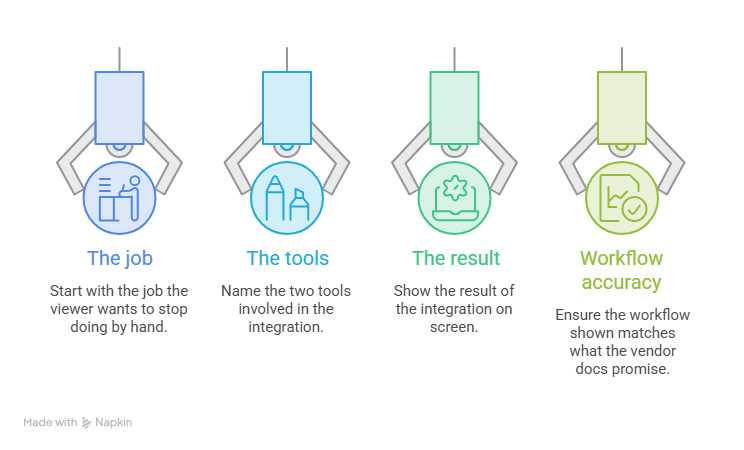
Start with the job, not the tools. Your viewer wants to know what they can stop doing by hand. Name that job, name the two tools, and show the result on screen. If you can't say all three in one sentence, the video is trying to do too much.
Then check what you promise. Vendor docs often hold limits that a smooth demo hides. HubSpot's Salesforce guide, for example, says moving to a new Salesforce production org means turning the integration off for about an hour. Company-to-account and deal-to-opportunity relationships are lost along the way (page updated October 2, 2026).
You don't need every limit in the video. You just shouldn't show a workflow the docs say doesn't work that way. And honestly? Skip the feature tour. One workflow done well beats five features rushed.
Which integration setup prerequisites belong in the video?
Anything that can stop a viewer before step one. Think admin roles, permissions, plans, and approvals.
Take Salesforce and Slack as an example. Salesforce's help page says every user needs a permission set with the "Connect Salesforce with Slack" permission, including the Slack workspace owner who adds apps. It also says the Slack workspace owner or Enterprise Grid admin must approve and install the app. And the connection isn't supported in Government Cloud orgs. On the Slack side, workspace owners can turn on app approval to control which apps members can install.
Put these on one short on-screen checklist at the start. Ten seconds is plenty.
One catch: Salesforce's page only says "supported licenses" and doesn't list editions. Don't name editions in your script until you've confirmed them. And re-check the docs the day you record, because requirements change.
How do you plan a cross-tool workflow video?
Map three beats. First, the starting event in tool A. Second, the data moving across. Third, the visible result in tool B. Then plan the switch between tools, because that's where viewers get lost.
Research on software training videos suggests showing the whole screen so viewers can see where things are, and announcing each step just before you do it (van der Meij and van der Meij, 2013). That work covers single-app tutorials, so treat it as a starting point for two-tool videos, not proof. Nielsen Norman Group found that many viewers can't or won't play sound. That's a good reason to label each tool on screen every time you switch.
Here is an illustrative storyboard. It is an example, not a tested result, so confirm your real integration works this way before you copy it.
How do you write integration value messaging?
Tie one action to one benefit, in words the vendor docs support. "Boost productivity with our integration" tells nobody anything. Try this instead: "When a lead is created, your team sees it in the sales channel, so nobody pastes it by hand." That line is illustrative, so match it to what your integration really does.
Be careful with time-saved numbers. One popular figure, that business owners save a median of 5 hours a week, is often credited to Zapier. It actually traces to a 2026 SBE Council survey about AI use. If you can't trace a number to whoever measured it, leave it out.
Which integration video source assets should you capture?
Record clean footage from test accounts filled with dummy data. No real customer names or emails. Hide bookmarks and notifications, and use current screens. Capture each tool separately, then add a prerequisites screen and an end card.
Clear, approved source assets are also what let PuppyDog turn screenshots or screen recordings into a product video with a script you review and narration.
Permission matters as much as the footage. Salesforce's guidelines allow software screenshots solely for educational tutorials or to show how your product integrates. Screenshots can't be changed except for resizing or redaction, and they must not show third-party content or personal data. The same page says using Salesforce trademarks in marketing or promotional materials needs written authorization. Slack's brand terms say most uses need a specific written license.
I'm not a lawyer, so ask your partner or legal team before you publish.
What should an integration video CTA ask users to do?
Send viewers to the verified setup guide or integration page. A video can teach the steps, but it can't install anything. So "Read the setup guide" is a safer ask than "Install now," especially for viewers who may lack admin rights.
Add a second path for those viewers, like "Share this guide with your admin." That one is my suggestion, not a researched rule. I couldn't find measured data on CTA wording for integration videos, so treat this as practical advice and test it on your own audience.
FAQ
Should an integration video show setup or the final result first?
Both, in a set order. Preview the result for a few seconds, then walk through setup in the order users do it. Software training research supports previewing the goal, and Nielsen Norman Group found viewers dislike long intros. No source tested result-first against setup-first for integration videos, so treat this as a practical call.
How do I show two interfaces without confusing viewers?
Label each tool on screen every time you switch. Show the full new screen first, say what you're about to do, then highlight the element. Avoid sudden cuts with no label.
What permissions should I mention?
Name three layers: the admin who sets up the connection, the workspace owner or admin who approves the app, and each user who connects their own account. Salesforce's Slack setup works this way. Always check current docs for your own tools.
Does showing an integration mean PuppyDog connects to that tool?
No. PuppyDog works from the approved screenshots or screen recordings you provide and turns them into a product video with a reviewed script and narration. Showing two tools working together in the video doesn't mean PuppyDog connects to either one.
Next step
Once your screens are approved, you can create an integration video with the AI product video maker. It's built for professional product videos without a production team. See how it works on the Product video creation page. Need basic recording tips first? Here's the Related guide.

Sarah Thompson is a storyteller at heart and Business Developer at PuppyDog.io. She’s passionate about creating meaningful content that connects people with ideas, especially where technology and creativity meet.