How to Build a Video Knowledge Base Around Real Customer Questions
Sarah Thompson
A video knowledge base works when every video answers one real customer question and sits inside an article with text. Start from the questions customers actually ask, name each video after the task, and add steps, a transcript, and related links. Then keep it current and measure whether people find answers.
TL;DR
Build around customer questions and tasks, not product menus.
Pair each short video with written steps, a transcript and related links.
Transcripts give customers text to read and search. They do not guarantee indexing or AI citations.
Name videos after the task, and add the role or plan when it matters.
Give every article an owner, a UI version and review triggers. Then track search success, helpfulness and task resolution.
Picture a customer who types "invite my team" into your help center. The top result is a 12-minute video called "Workspace Overview." Three minutes in, they give up and open a ticket. That is the gap this guide closes.
What should a customer video knowledge base contain?
Answers, mostly. Not a library of product tours, but articles that each answer one question a real customer asked.
Organize by task, not by feature menu. Customers don't think "Team Settings module." They think "how do I add my coworker?" Kayako suggests building from ticket data and titling articles as the question a customer would type. So start with your recent tickets and chat logs.
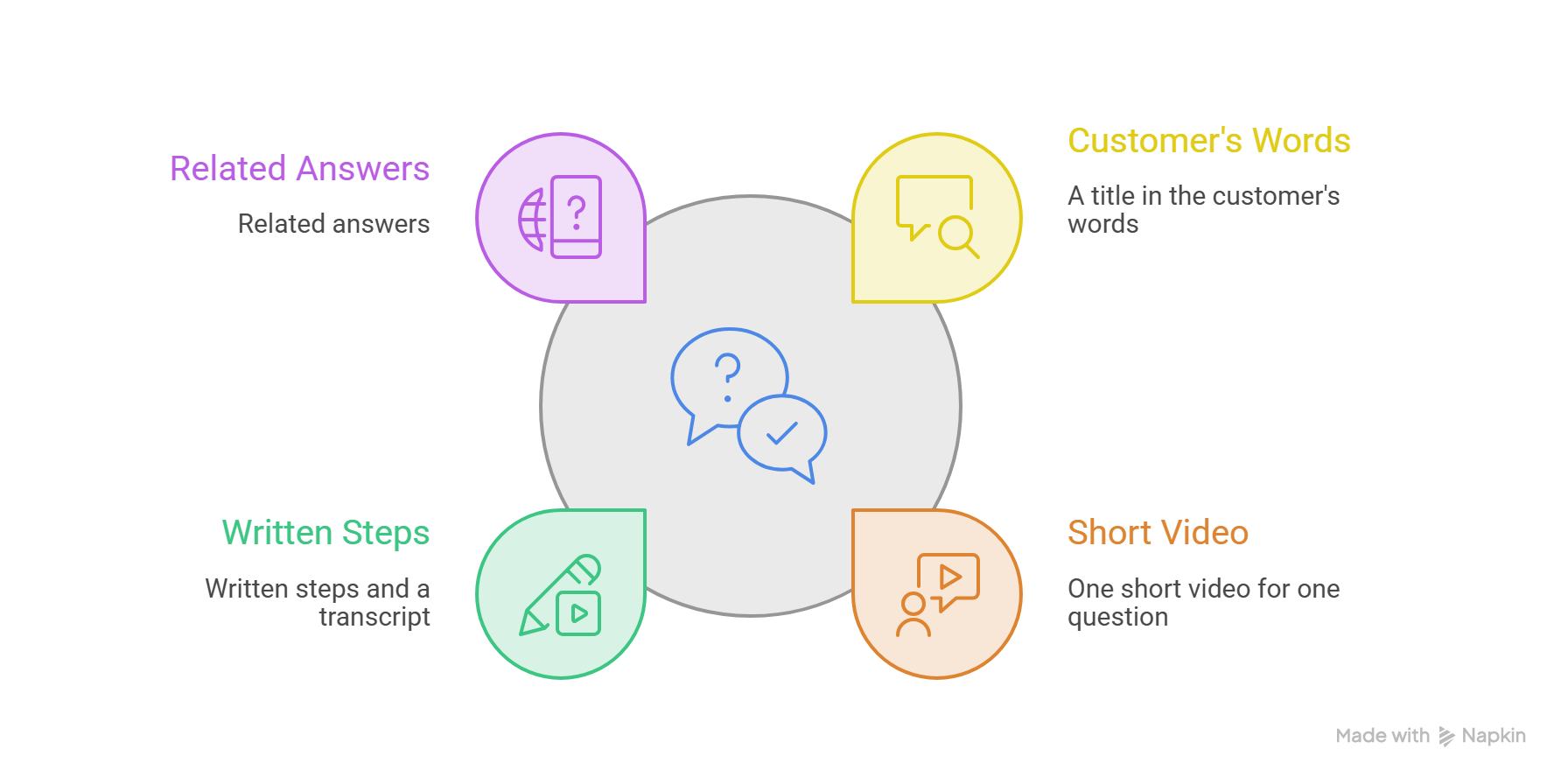
Each entry in a customer video knowledge base needs:
A title in the customer's words
One short video for one question
Written steps and a transcript
Related answers
Why not post the video alone? Video is hard to scan; you can't copy text from it, and it's useless with the sound off. A video with no text around it is like a recipe with no ingredient list. Making the videos is a separate topic, and our Related guide covers it for customer success teams.
How do you design a video help article structure?
Use the same layout every time. Customers learn where to look, and your team stops debating templates. This is my recommended order, not an official standard.
Title: the task, in customer words
Prerequisites: role, plan, or setup needed first
Direct answer: one or two sentences
Video: one question only
Numbered steps that match the video
Transcript
Troubleshooting
Related answers
The direct answer comes first on purpose. Some people only need one menu name. Let them leave in ten seconds.
Here is one example. It is illustrative, not a tested result, and the product is made up.
How to invite a teammate to your workspace
Prerequisites
Admin role. UI version 4.2.
Quick answer
Open Settings, select Team, click Invite member, enter an email, and choose a role.
Video
Invite a teammate (1 minute)Video player goes here
Steps
Open Settings.
Select Team.
Click Invite member.
Enter the email and pick a role.
Click Send invite.
Transcript
"Open Settings from the left menu. Select Team, then Invite member. Type the email, choose a role, and click Send invite. Your teammate gets an email with a link, and they show as Pending until they accept."
Related answers
Change a teammate's role.
Remove a teammate.
Fix an invite that did not arrive.
Where could that video come from? If your team already has a screen recording or screenshots of those steps, you can turn the approved assets into a product video with a reviewed script and narration. Then you add the finished video to your help center yourself. No production team needed.
How do searchable video transcripts help customers?
Transcripts do two jobs. They give people text access, and they give your search tool more words to match.
Start with access. The W3C says a descriptive transcript covers spoken words, meaningful sounds, and the key things shown on screen. For a screen recording, that means writing "click Settings, then Team" as text, not only saying it. In WCAG, captions for prerecorded video are Level A, and a full text alternative sits at Level AAA.
Now matching. Customers type their own words, like "invite" or "add someone," while your product may say "seat." A transcript puts the spoken words on the page, so a help center search that reads page text has more chances to connect the two.
Here is the careful part. A transcript is not a ranking trick. Google's video guidance lists name, thumbnail, and upload date as required markup, and it says it does not guarantee that search features will show up. Write transcripts for people first. Any search benefit is a bonus nobody can promise.
How do you choose help center video naming?
Name the video after the task, using words your customers use. A simple pattern is verb, object, goal. That is my rule of thumb, not a standard. Google also asks for a name on every video you mark up, so a title like "Video 3" helps no one.
The examples:
Weak name
Better name
Why it works
Team Settings Overview
Invite a teammate to your workspace
Matches what customers type
Project Titan Setup
Connect your workspace to your calendar
Swaps a codename for customer words
Manage Users
[Admin] Invite teammates and assign roles
Shows who can do it before play
Custom Domains
[Business plan] Connect a custom domain
Sets plan expectations
Role and plan tags save people from watching a video they can't use. I haven't found solid data on how much they help, so treat them as a courtesy, not a proven fix.
How do you manage video knowledge base maintenance?
Videos go stale fast. One moved button can make a whole clip wrong. So give every article three things:
Content owner: one named person or team who answers for it.
UI version: the product version the video was recorded on.
Review triggers: events that send the article back for a check.
Good starter triggers, which you should adjust to your team:
A release changes a screen shown in the video
A jump in "not helpful" votes
Searches that return nothing, which point to missing answers
A regular check of your most viewed articles, such as every quarter
When a trigger fires, run a quick video audit. Play the video next to the live product and check every click. One question per video makes this easy, because you re-record one short clip, not a long tour.
How do you measure video support effectiveness?
Views are tempting and misleading. A video can pile up plays because confused people keep replaying it. Track three things instead, with clear definitions:
Search success rate: searches that end in an article view, divided by all searches. A search that ends with no click counts against you.
Helpfulness: positive votes divided by all votes.
Task resolution: self-service sessions that do not end in a ticket, divided by all self-service sessions. This is a rough proxy, since a customer can quit without writing in.
I'm not giving target numbers. The figures floating around vendor blogs rarely come with sources. Measure your own baseline for a month, then improve from there.
Be careful with ticket claims too. Tickets rise and fall with releases, campaigns, and seasons. If volume drops after you add videos, great, but don't credit the videos alone.
FAQs
Should a help article contain both video and written steps?
Yes. Some customers can't play sound, some want to copy a setting, and some just want to scan. Text also helps people who can't use the video at all. WCAG treats captions for prerecorded video as a Level A requirement.
How long should a one-question help video be?
Short. Older research summarized by Cherryleaf points to 15 to 60 seconds, with about 90 seconds as a practical limit. My rule is one question and 60 to 90 seconds. If a task needs more, split it into two articles.
Can a video knowledge base replace live support?
In my view, no. It handles simple, repeatable questions well. Billing disputes, bugs, and upset customers still need a person. Think of it as a first stop that frees your team for harder work.
How do I keep help videos aligned with product changes?
Tie them to your release process. Keep an owner and UI version on each article, record one question per clip, and re-record only the clip that changed. Then spot-check after each release.
Your next step: create a help video
Pick one question from last month's tickets. Gather the screen recording or screenshots you already have for those steps. Then use the AI product video maker to turn them into a product video with a reviewed script and narration, and place it in your first video knowledge base article. Want the details? See Product video creation.
Sarah Thompson is a storyteller at heart and Business Developer at PuppyDog.io. She’s passionate about creating meaningful content that connects people with ideas, especially where technology and creativity meet.
"PuppyDog.io has built a platform that uses generative AI to create hyper-personalized product demos so sales and marketing professionals can engage with prospective customers in a more targeted way."
Andrew Ng
Founder, Coursera
Supercharging your demos
Boost sales, marketing, and customer success with AI.