Product Teaser Video vs Full Demo: What to Include in a Short Highlight


A product teaser video is a short clip that shows one problem, one action, and one result, so viewers get curious and want more. A full demo goes deeper and helps buyers decide. Keep the pain, the key click, and the payoff. Cut setup, settings, and side trips.
What is the product teaser purpose?
You spent hours on a seven-minute walkthrough. Now someone wants a 30-second version for LinkedIn, and every cut feels like throwing away good work. It helps to ask what the short version is actually for.
The product teaser's purpose is curiosity. A teaser meets people who are scrolling, not shopping. It doesn't explain the product. It makes someone think, "That's my problem," and want to see more.
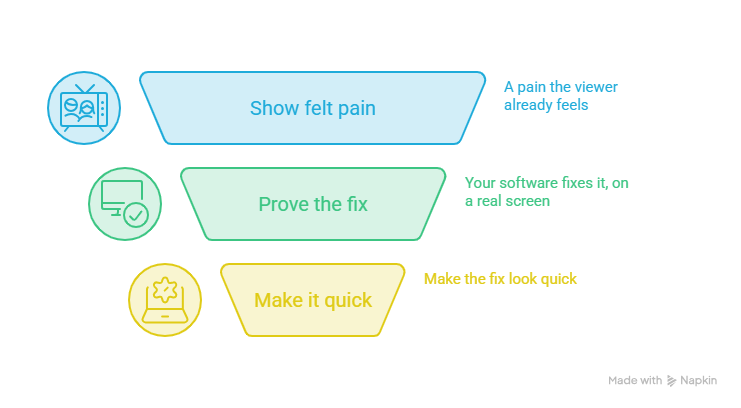
To do that, a teaser has three jobs:
- Show a pain the viewer already feels.
- Prove your software fixes it, on a real screen.
- Make the fix look quick.
A full demo has a different job: helping someone decide. Think of a movie trailer and the movie. If you're planning the bigger launch around the video, this related guide covers it.
How does a teaser vs demo video change the story?
Same product, same footage, different story. The teaser vs demo video choice changes who you talk to, how much proof you show, and what you ask people to do next.
The classic mistake is a teaser that tries to be a mini demo. It ends up too long for a feed and too thin for a buyer.
Which product teaser highlights should you keep?
Use one test: problem, action, result. Every moment you keep must serve one of the three. Everything else goes, even the clever bits.
Example: a 7-minute walkthrough cut down to a teaser
Picture a 7-minute walkthrough of an imaginary analytics tool called DataPulse. The presenter logs in, shows a messy reporting problem, types one prompt, gets a dashboard, then tweaks colors and answers questions. Here is how the keep and remove calls could go.
The kept moments add up to about 1 minute 40 seconds, so the teaser trims inside them and tightens the narration to land near 38 seconds. It plays in three beats:
- The problem (about 8 seconds): messy spreadsheets and a calendar full of manual reporting.
- One clear action (about 16 seconds): the prompt is typed and sent.
- The visible result (about 14 seconds): the dashboard appears, a zoom lands on the key chart, and a short call to action closes it.
If a moment doesn't help the viewer feel the problem, see the action, or see the result, cut it. Yes, even the one you worked hardest on.
How do you choose product teaser length?
Start with where the video will play. A feed, a cold email, and a landing page each get a different amount of patience. Skip the attention-span myths and use published video benchmarks instead.
- Social feeds: Wistia suggests keeping awareness and social videos under a minute. Vidyard lists about 15 to 30 seconds for Instagram in-feed video.
- Email: Vidyard recommends 45 seconds or less for video email.
- Landing pages: Vidyard recommends 30 to 60 seconds.
- Sales follow-ups: Vidyard suggests 30 to 60 seconds for sales outreach.
Vidyard also reports that about 65% of viewers finish business videos under 60 seconds, compared with about 20% for videos over 20 minutes.
These numbers cover business video in general, not teasers alone, so treat them as a starting point. My take: begin at 30 to 45 seconds, make two versions and see which one people finish.
How does AI teaser creation work in PuppyDog?
PuppyDog helps teams make professional product videos without a production team. Its Highlights feature handles the shortening part, so you don't have to scrub a timeline by hand.
- Upload a full-length demo, walkthrough, or Zoom recording.
- Set the target length you want.
- PuppyDog analyzes the video for key moments, value statements, and engagement peaks, then trims toward your target.
- Polish the result with AI Scripts, Auto Zooms, and Playback Speed, which Highlights works with.
Run the DataPulse walkthrough through this, and you'd upload it, set a target near 40 seconds, then check the cut against the keep and remove table above.
Check the retained context
Treat the first cut like a draft. Watch it as a stranger would and ask three things: can I see the pain, the click, and the payoff? If one is missing, adjust the target length or trim the source first. Read the script and narration too, since they carry the story.
What should a teaser video CTA link to?
A teaser video CTA has one rule: send people somewhere that keeps the promise the video made. You have three solid options.
- Full walkthrough: best for complex products where viewers want the whole story before talking to anyone.
- Feature page: best when the teaser covers one capability, and you want to add detail and proof around it.
- Free trial: best for self-serve products, because people can try the exact action they just watched.
Say your teaser shows a dashboard appearing from one prompt. Land viewers on the page about that, not the generic homepage. A mismatch feels like bait and switch. Would you click twice to find what a video just promised?
FAQs
Can a product teaser replace a full demo?
No. A teaser creates interest, while a demo handles evaluation. Buyers still need workflows, settings, and edge cases before they commit. Use the teaser to earn the click and the demo to close the deal.
Should a teaser show the actual software interface?
Yes. Real screens prove the product exists and works, which abstract animation can't do. Use zooms or highlights to point at the one thing that matters.
Can I shorten a sales recording into a teaser?
Yes, if the call has a clear explanation worth sharing. Sales recordings often include small talk and detours, so trim down to the problem, the action, and the result. PuppyDog Highlights accepts Zoom recordings and aims for your target length. Get permission before sharing anything with customer details.
How do I know whether a teaser removed too much context?
Watch it as a stranger would. Can they say what the problem was, what happened on screen, and what came out? If the result seems to appear from nowhere, you cut too much. Even better, ask someone who hasn't seen the full demo to describe it back.
Next step
Ready to make your own product teaser video? Take one long walkthrough, try Highlights in PuppyDog, the AI product video maker, and set a target near 30 to 45 seconds. Then run the problem, action, result test on the cut. Product video creation in PuppyDog goes beyond teasers if you want to see what else you can build.

Sarah Thompson is a storyteller at heart and Business Developer at PuppyDog.io. She’s passionate about creating meaningful content that connects people with ideas, especially where technology and creativity meet.