Screen Recording Tips for Better AI Product Videos: Prepare Your Source Footage

The best screen recording tips are simple. Record one task from a clean starting point, keep text readable at the size viewers will see, move the cursor slowly, and use a demo account with safe data. Clean footage gives an AI product video maker a clear story to work from.
What should a product screen recording show?
It should show one task, start to finish. Not your whole product. "Create an invoice" works. "A tour of every menu" does not.
Think of it like giving directions. You tell someone how to get from A to B, not every street in town.
Write down the start and the finish
Before you record, write two lines. Where does the viewer start, and what do they see when it works? For example: start on an empty dashboard, finish on an "Invoice sent" message.
Walk it through once first
TechSmith's recording basics course suggests one last walkthrough of your process before you hit record. It's boring advice. It also saves you retakes.
Leave out settings detours, account menus, and wrong clicks. If you click the wrong thing, stop and start the clip again.
How do you choose screen recording resolution?
Match the size you plan to publish. TechSmith's course says to record at your final size, and to go bigger only if you plan to zoom in later, keeping the same aspect ratio.
A safe baseline is 1080p, or 1920×1080, in 16:9. Snagit's own guide lists 1080p and 720p as standard sizes.
Honestly, I'd check the text before I'd chase 4K. Shrink the clip to half size. If a label is hard to read, a viewer on a phone won't read it either. If it's too small, raise your browser zoom a notch and check again. That's my rule of thumb, not a tested result.
Frame only the app window, not your whole desktop. Check the current capture options in the PuppyDog Chrome extension before a long session.
This post is about footage, not tools. If you're still picking a recorder, see our Related guide.
How do you improve screen recording pacing?
Slow is smooth. TechSmith's tips boil down to a few habits: don't rush, don't skip steps, move the mouse with purpose, and keep an easy pace.
Why does this matter for an AI video? A script needs a moment to land on. If the cursor flies across the screen and the page changes before the viewer can blink, the narration has nothing clear to point at. PuppyDog drafts the script and voiceover from your recording, and you can edit both, so a calm take means less fixing.
Screen recording tips for every click
- Rest on the screen for a beat.
- Move the cursor straight to the target.
- Pause for a moment.
- Click.
- Let the result sit before you move on.
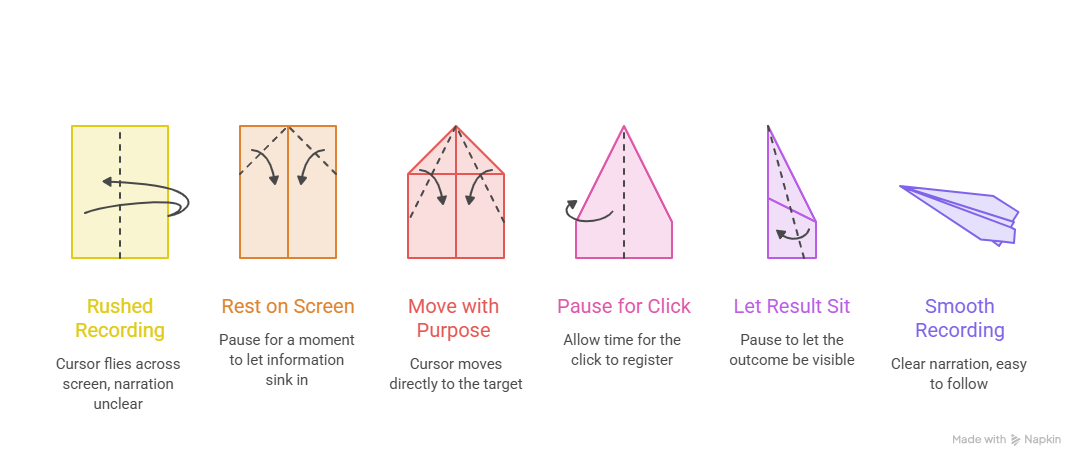
About one second per beat is my rule of thumb, not a tested number.
How do you prepare a demo account setup?
Use a dedicated demo account. Real customer names, emails, and numbers don't belong in your footage.
Fill it with believable fake data, like "Maria Lopez at Northwind Traders" (a made-up example), instead of "test test 123". Realistic data makes the product look like it does real work.
Then clean the stage:
- Turn off notifications or switch on Do Not Disturb.
- Close extra tabs and hide your bookmarks bar.
- Clear your desktop and use a plain background.
- Scan the screen for visible names, emails, and keys.
Handling real customer data safely is a bigger topic. Follow your company's privacy rules for that.
Which screen recording mistakes weaken AI videos?
Here are five I'd watch for. They're common, easy to spot, and easy to fix.
Good versus poor: an illustrative comparison
This table uses a made-up invoice task. It's an example, not a test result.
How do you review AI video source footage before uploading?
Play the clip back at normal speed, the way a viewer would. Don't scrub through it. You'll miss the awkward bits.
Source-capture checklist
- One task, with a clear start and finish
- No detours or wrong clicks
- Text readable at half size
- No notifications, stray tabs, or private data
- A beat before key clicks and after results
- The final result stays on screen for a moment
Name your files so you can find them
Use a pattern like Product-Task-Version-Date. For example: AcmeBoards-CreateInvoice-v2-20261007.mp4 (a made-up product). This is our suggested pattern, not a PuppyDog requirement.
Then record with the PuppyDog Chrome extension and let it draft the script and voiceover. Review both before you publish.
FAQs
Should I record the whole product or one workflow?
One workflow. A focused clip is easier to follow, and easier to retake if you slip. Save the other features for other videos.
Do I need to narrate while recording?
Not with PuppyDog. It drafts the script and voiceover from your recording, and you can edit both. A short list of your steps on a sticky note still helps you stay on track.
How do I keep small UI text readable?
Frame just the app window, raise the browser zoom a notch, and check the clip at half size. If you can read it there, you're in good shape.
Should I remove loading screens before generating the video?
Trim long waits. TechSmith's editing guide lists long loading screens and dead air as things to cut. Keep a short beat so viewers see the result appear.
Next step
Take these screen recording tips and try them on one task this week. Record a short clip, run the checklist, then use PuppyDog's Product video creation to create your first video.

Sarah Thompson is a storyteller at heart and Business Developer at PuppyDog.io. She’s passionate about creating meaningful content that connects people with ideas, especially where technology and creativity meet.