Top 11 AI Screen Recording Tools of 2026

Screen recording used to be simple: hit record, trim the mistakes, export, and hope the file wasn’t too large. But 2026 has flipped the script. AI isn’t just assisting creators anymore; it’s running the entire workflow behind the scenes.
Today’s best AI screen recording tools can automatically clean up your footage, remove filler words, generate summaries, enhance video quality, and even write the script before you record. For teams in sales, product marketing, training, or support, this shift means faster production, higher-quality videos, and almost no manual editing.
And because most modern tools are now cloud-based and compatible with Windows, Mac, and browsers, you’re no longer restricted by hardware or complex setups. Whether you want advanced editing, quick sharing, or automated demo creation, there’s a tool designed exactly for that.
This guide breaks down the Top 11 AI Screen Recording Tools of 2026, what they’re best at, and how to choose the right one for your workflow.
Preview of What’s Inside
- The 11 best AI screen recording tools you should consider in 2026
- How AI transforms recording, editing, and summarization
- The best choices for Mac, Windows, and web users
- A comparison table to help you choose quickly
- Expert picks based on use cases like editing, collaboration, sales, and streaming
Let’s get into it. 2026 is the year screen recording gets genuinely smart.
What Makes the Best Screen Recorder for PC or Mac? Four Benchmarks
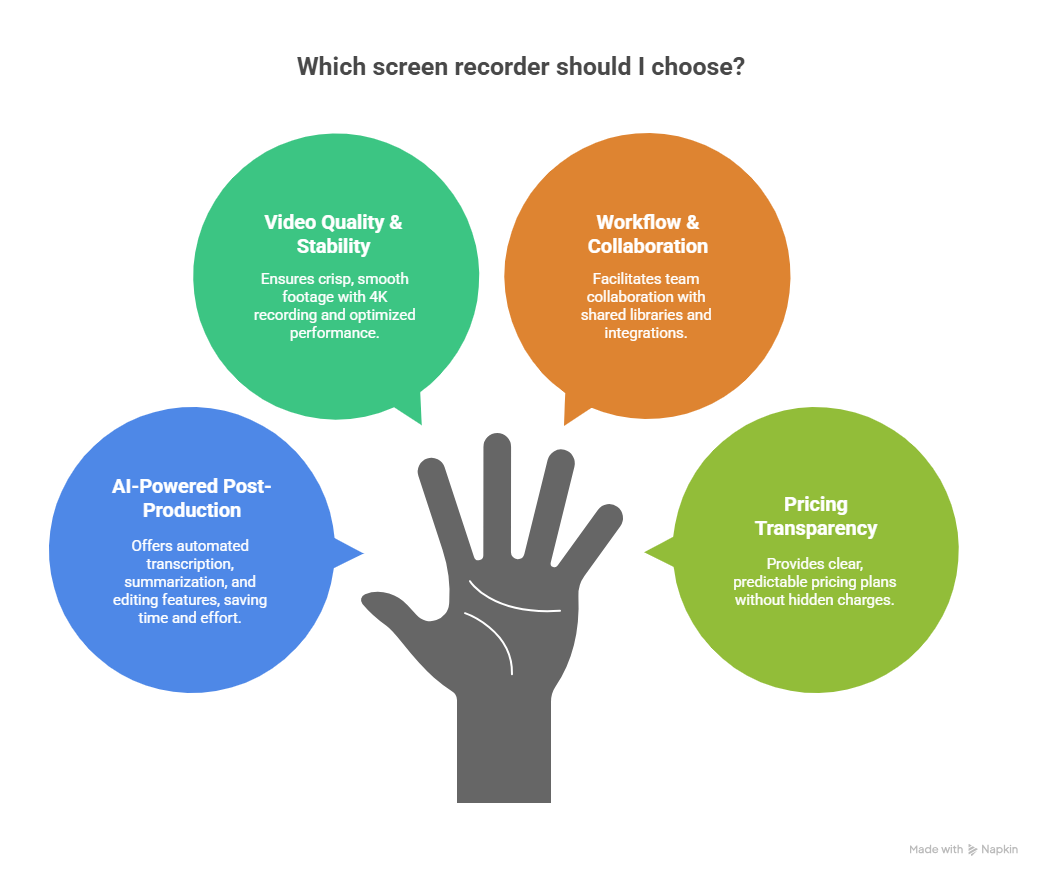
With so many AI screen recording tools available in 2026, choosing the right one can feel overwhelming. But when you strip away the marketing fluff, the best tools, whether for Windows, Mac, or the browser, tend to excel in four key areas. These benchmarks separate basic recorders from brilliant, workflow-ready solutions.
1. AI-Powered Post-Production
Gone are the days of scrubbing through timelines for minor edits. The top tools now offer AI-powered transcription and summarization, automated trimming, filler-word removal, and even script suggestions. Some can detect mistakes in your narration and quietly fix them. Others go a step further, letting you edit the video just by editing your text transcript.
If your workflow involves demos, tutorials, or training content, this kind of automation isn’t just convenient. It’s a massive time saver.
2. Video Quality & Platform Stability
A great recorder should deliver crisp, smooth footage without CPU meltdowns. In 2026, most leading platforms support 4K recording, video quality enhancement, 60fps capture, and optimized performance for both Windows and Mac (including Apple Silicon).
Whether you're walking through software, capturing gameplay, or producing polished product demos, stability matters just as much as resolution.
3. Workflow & Collaboration
The best AI screen recording tools don’t stop at recording. They help you work smarter with your team. Look for features like:
- Shared libraries and team workspaces
- Time-stamped comments
- Instant cloud sharing
- Collaborative workflows for editing and reviewing
- Integrations with CRMs, LMS platforms, or project management tools
If you’re part of a sales, product, or training team, this collaboration layer can make or break your choice of tool.
4. Pricing Transparency & Cost Predictability
Pricing in 2026 varies widely: some tools charge per seat, others per export, and many AI-heavy platforms use credits based on minutes or features. A great tool should have clear, predictable pricing & subscription plans, with no hidden charges for exports, avatars, or advanced AI processing.
Before choosing, think about how often you’ll record, how much editing you’ll automate, and whether your team may grow over time.
When you evaluate tools using these four benchmarks, AI strength, quality, workflow fit, and pricing clarity, you can confidently pick the best screen recorder for your PC or Mac and avoid nasty surprises later.
Comparison Table: Quick Snapshot of the Top 11 Tools
Here’s a concise overview of the top 11 AI screen recording tools of 2026:
*Pricing tiers vary; many tools offer free or trial plans plus paid tiers.
Use this snapshot to quickly compare platform compatibility, purpose, and cost before diving deeper.
Top 11 Screen Recording Tools ( Short Tool Profiles )
1. Descript: The King of Text-Based Editing
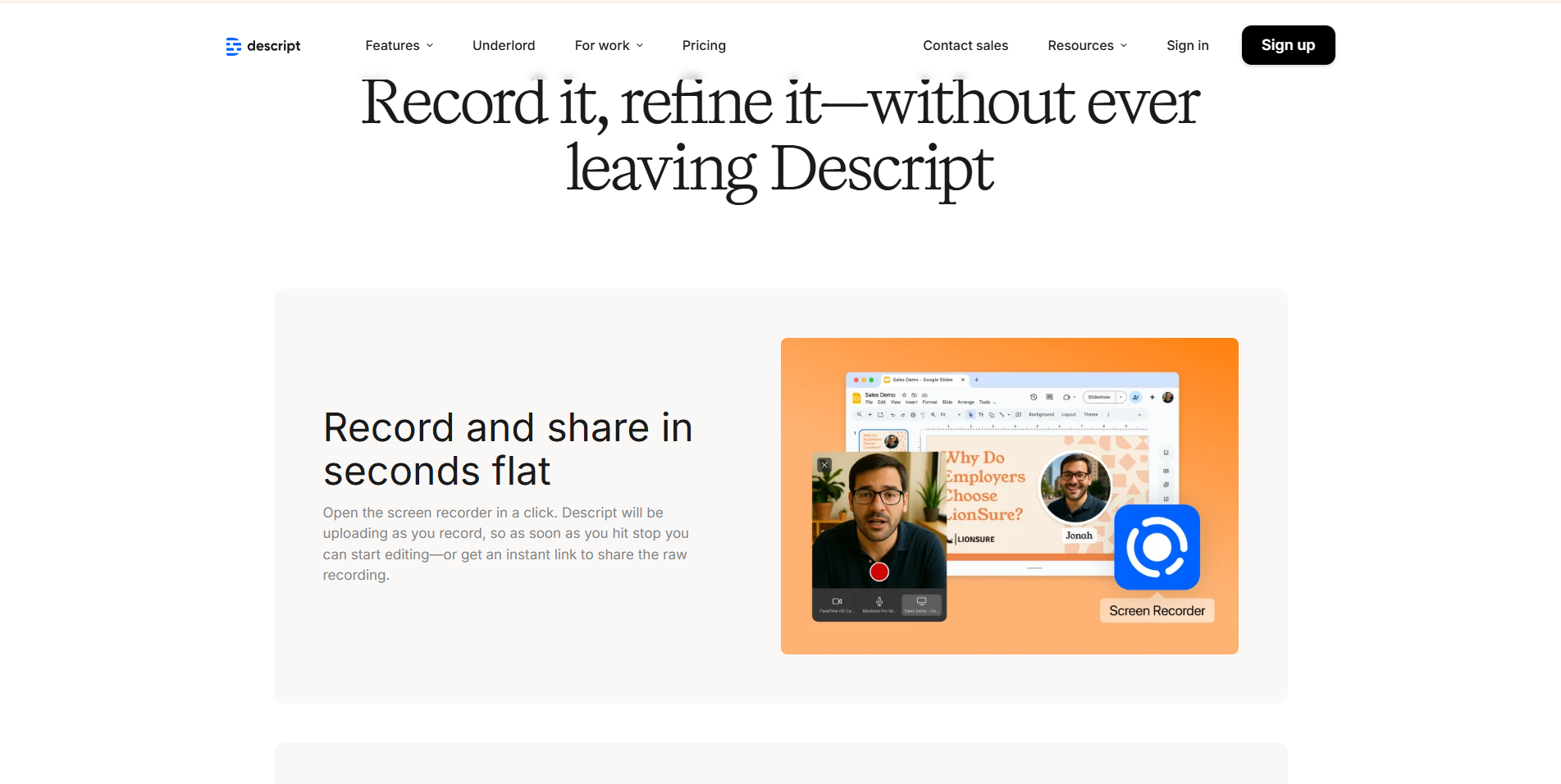
Descript has earned its reputation as the go-to choice for creators who want to edit videos without wrestling with a timeline. Its standout feature, editing video by editing text, still feels a bit magical, even in 2026. For educators, podcasters, YouTubers, and product marketers who constantly need to refine narration, Descript’s transcription accuracy and correction tools save hours. Automated trimming, filler-word removal, audio repair, and multi-track editing make it feel like a full editing suite without the complexity.
Descript’s strength lies in AI-powered transcription, summarization, and voice recognition, which makes long-form content incredibly easy to polish. On top of that, its collaboration tools allow teams to leave comments, track changes, and export in multiple formats.
If your workflow involves heavy narration or you hate timeline editing, Descript is absolutely the top choice, clean, accurate, and ridiculously efficient.
2. Puppydog.io: Demo Automation for SaaS Teams

Puppydog.io isn’t just a screen recorder; it’s a complete demo automation engine built for SaaS companies, product marketers, and sales teams. Unlike traditional recorders, Puppydog lets you capture screens or upload screenshots and automatically generate personalized product demo videos using AI avatars, script generation, and customizable storyboards.
One of the biggest advantages is that the system handles the heavy lifting: automated editing, voiceovers, localization, branding, transitions, and smart content suggestions. For teams running product-led growth or outbound sales, Puppydog can create hundreds of personalized demos without re-recording anything.
Its workflow-first design makes it easy to collaborate, approve content, and publish demos across CRM tools. If your priority is scalability, consistency, and high-quality product walkthroughs, Puppydog.io is in a league of its own, modern, efficient, and purpose-built for enterprise demo workflows.
3. Camtasia: The Most Comprehensive Editing Suite

Camtasia is the heavyweight champion of structured, polished video production. It’s not the fastest tool, but it’s one of the most powerful: not just a screen recorder, but a full editing studio with transitions, animations, effects, green screen, cursor smoothing, and more.
For educators, online course creators, and anyone building polished software tutorials, Camtasia’s AI-assisted editing, smart captions, auto-enhancements, and timeline precision deliver a level of quality you won’t get from lightweight browser-based tools.
Its strength is stability: long recordings don’t crash, 4K exports look great, and everything feels refined. The 2026 version includes better media management, automated clip organization, and improved AI trimming. If you want complete control, complex scenes, and professional-quality editing without needing Adobe Premiere, Camtasia remains the gold standard.
The downside? Higher price. But if you build training or educational content, it pays for itself.
4. ScreenFlow: Mac Users’ Favorite Power Tool

For Mac users, ScreenFlow hits the sweet spot between power and simplicity. It feels lighter and more responsive than Camtasia, and Apple Silicon optimization makes it incredibly fast. ScreenFlow’s screen recording quality is excellent, especially for multi-monitor setups, and the editing workflow is clean and intuitive.
AI-powered features like audio cleanup, transcript-based editing, auto-captions, and pacing suggestions make 2026's version smarter than ever. It also includes high-quality templates, motion graphics, and annotations that look much more professional than browser tools.
ScreenFlow’s biggest advantage is that exports are crisp and reliable. If you’re building tutorials, tech reviews, app demos, or training content on a Mac, ScreenFlow delivers professional quality with far less friction than heavier apps.
It’s Mac-only, which is a drawback for teams, but for solo creators and educators, it’s one of the best tools available.
5. Loom: Fast Recording & Instant Sharing
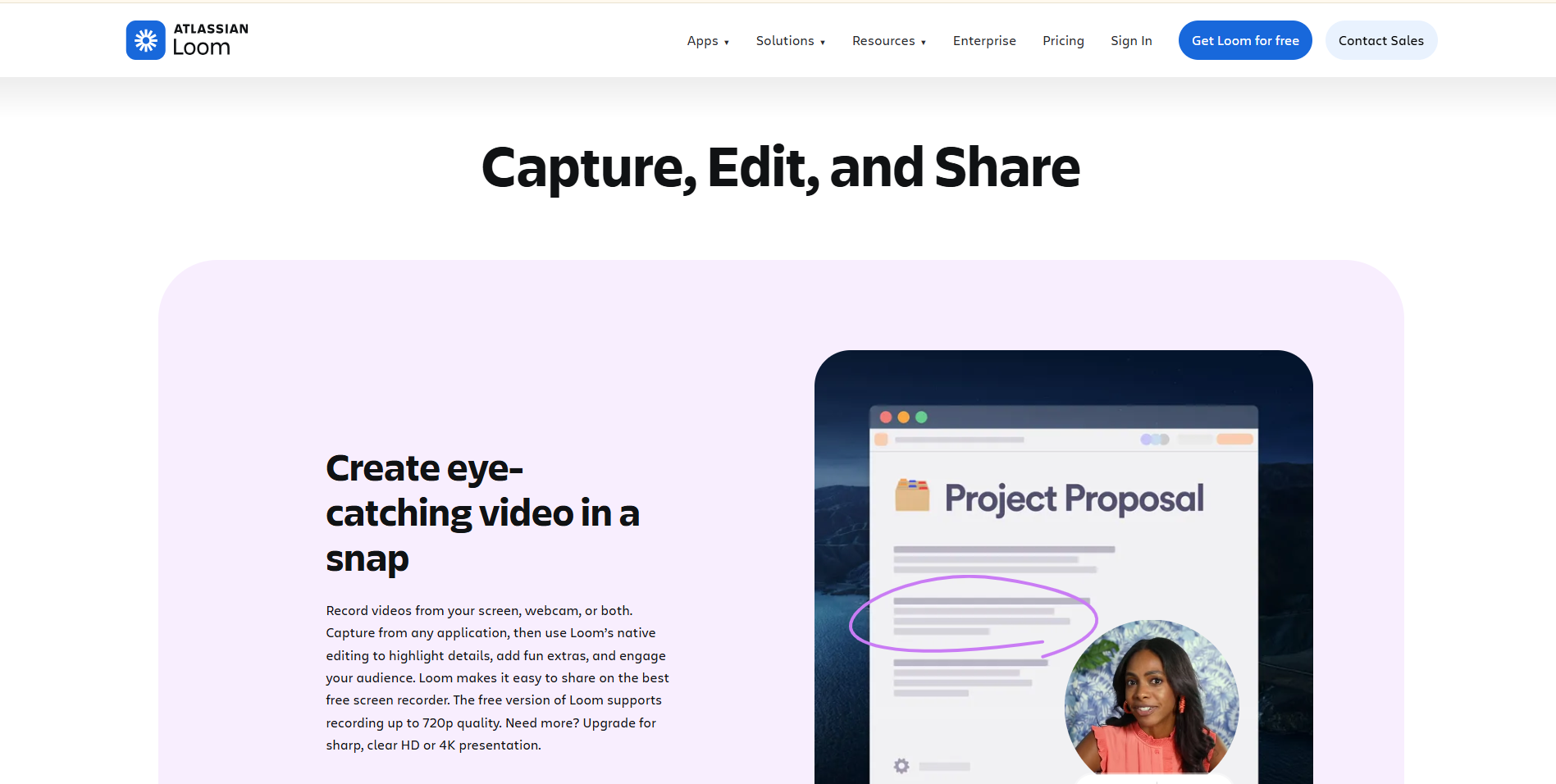
Loom is the default tool for teams who want to record fast and share instantly. Its strength isn’t heavy editing—it’s speed. With one click, you can capture your screen, camera bubble, or both, then instantly share a link that opens in the browser with automatic transcription, chapters, reactions, and team comments.
In 2026, Loom’s AI upgrades include automatic trimming, filler removal, smart titles, summaries, and improved collaborative features. It’s ideal for async communication, internal updates, product walkthroughs, or onboarding content.
Loom’s simplicity makes it a favorite in remote teams, where the goal is clarity, not cinematic production. The downside? Limited advanced editing. Still, its convenience, speed, and team integration make it a must-have for quick communication.
If you want the fastest way to capture and send a clean recording, even on mobile, Loom is still unbeatable.
6. Vidyard: Purpose-Built for Sales & Marketing
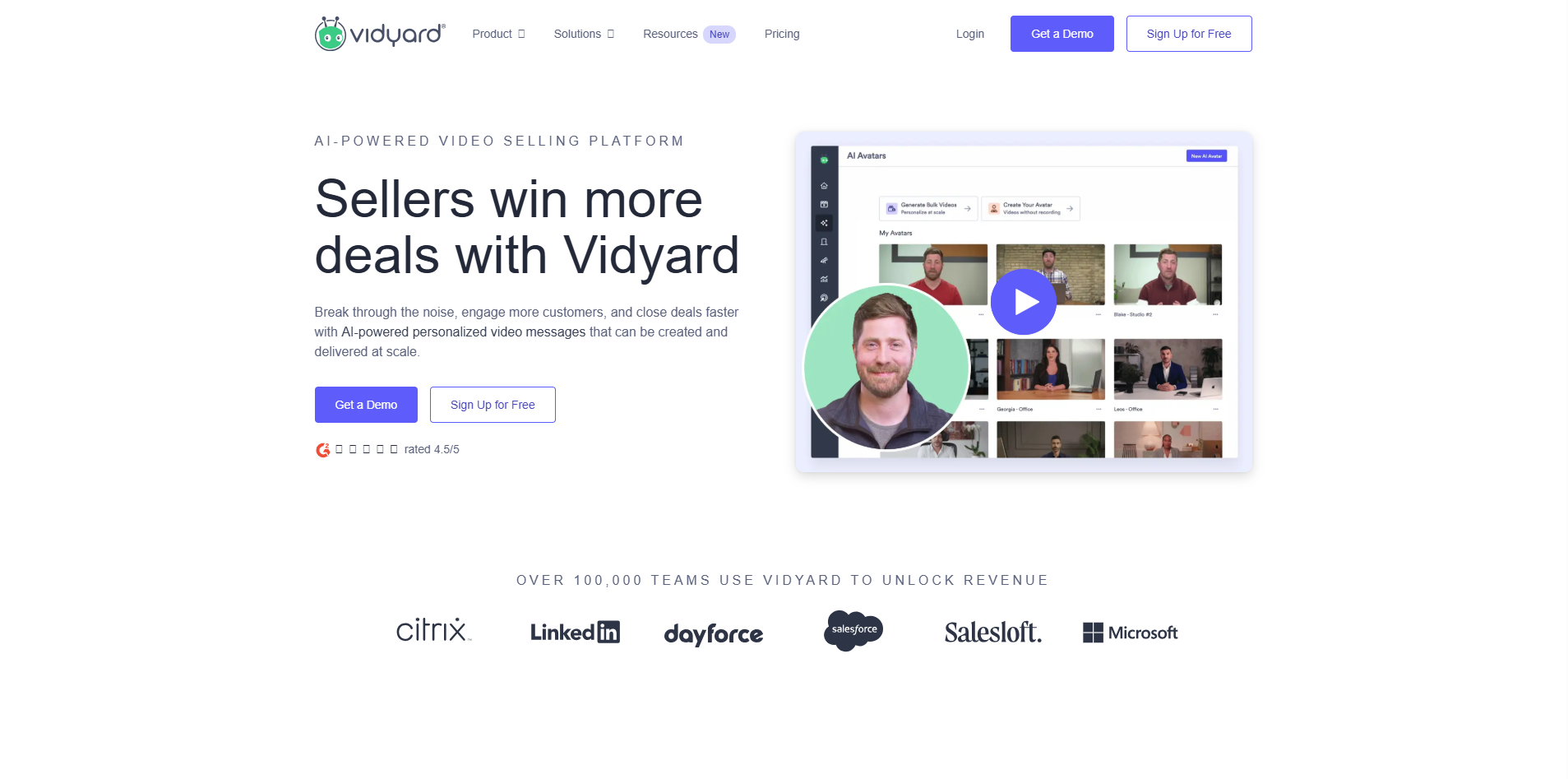
Vidyard is the go-to tool for sales teams, and it shows. Its core strength is personalization at scale. In addition to screen recording, Vidyard offers video landing pages, email tracking, engagement analytics, and CRM integrations that tell you who watched your video, for how long, and what they clicked on.
AI enhancements in 2026 include automated editing, custom CTAs, smart thumbnails, AI avatars, and dynamic personalization features that help sales reps send hundreds of tailored videos without re-recording.
If you’re in sales, business development, or customer success, and you need insights like viewer drop-off, video scoring, or pipeline attribution, Vidyard is easily the best option.
It’s pricier than Loom, but the analytics justify it. For marketing teams running campaigns or outbound sequences, Vidyard is a powerful conversion tool.
7. OBS Studio: The Free, Power-Packed Recording Giant
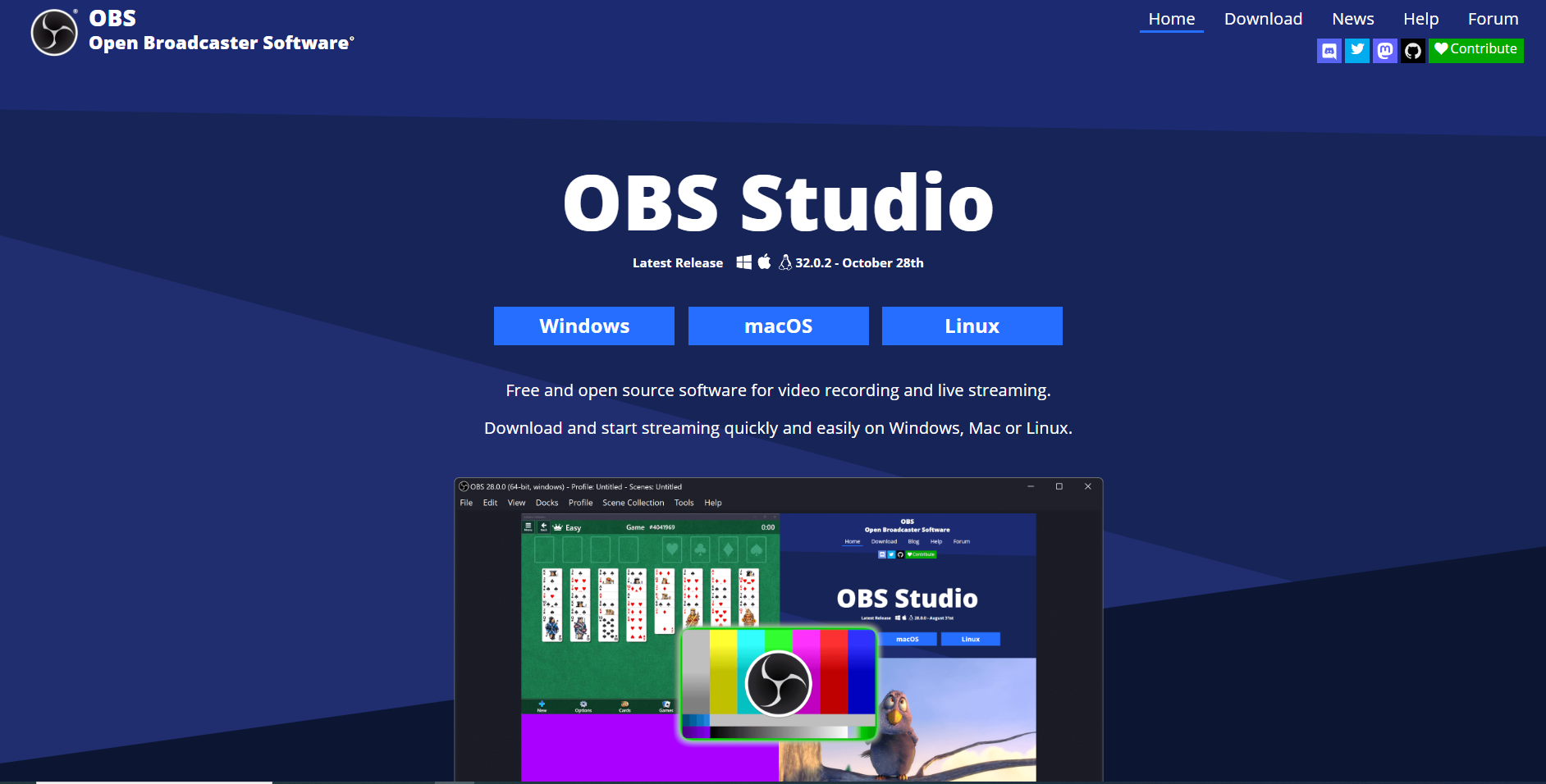
OBS Studio remains the most capable free recording tool in 2026. While it’s beloved by streamers, creators increasingly use it for high-quality screen recording because it offers incredible flexibility. Scene switching, layered overlays, green screen, audio routing, and NDIs give you full control.
The downside? OBS has a learning curve and no built-in AI editing. However, its 2026 ecosystem includes plugins for noise removal, auto-scenes, smart frame detection, and AI-powered enhancements that make it more accessible.
If you need a long-form, high-quality recording without paying anything, OBS is unbeatable. It’s also ideal for live streaming, webinars, gameplay, or hybrid teaching.
Just don’t expect the convenience of Descript or Loom; OBS gives you power, not automation. Creators who like control will love it.
8. Veed.io: Browser-Based Editing with Smart AI Tools
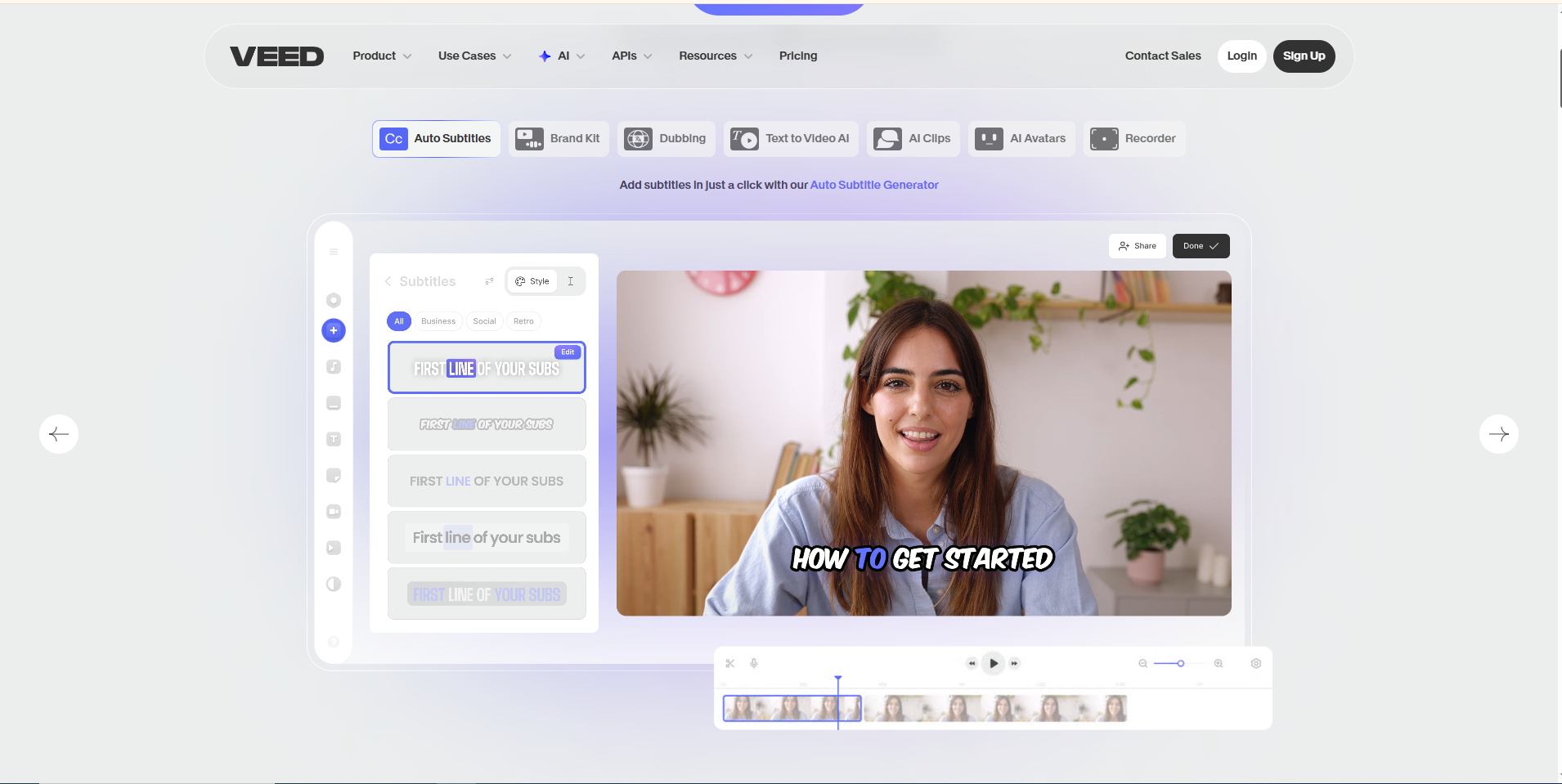
Veed.io has grown into one of the most popular web-based editors because it’s incredibly easy to use and surprisingly feature-rich. If you want to record your screen and immediately refine it in the browser, adding captions, templates, effects, translations, or AI cleanup, Veed makes the process quick and painless.
The 2026 update includes AI-powered content suggestions, auto-editing, instant subtitles in 120+ languages, smart removal tools, and improved rendering speeds.
It’s ideal for social content creators, educators, and marketers who want polished videos without installing software.
However, advanced editors may find it limiting, and high export resolution requires a paid plan. Still, for browser-based editing, Veed is one of the strongest tools you can choose.
9. Tella: Stylish, Modern, and Fantastic for Explaining Videos
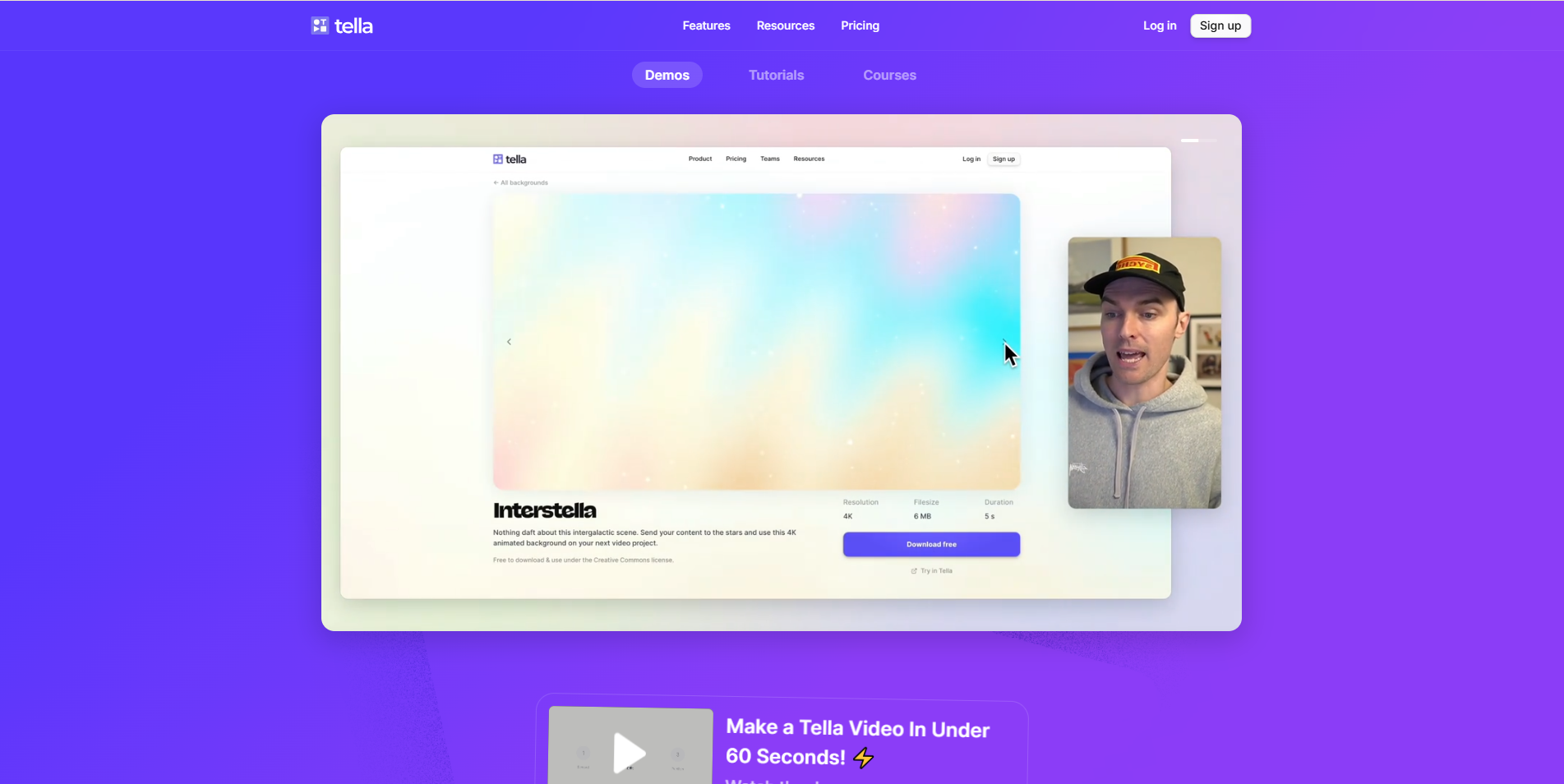
Tella stands out with its charming aesthetic and modern interface. It lets you record your screen and camera, then quickly rearrange clips, add transitions, choose background styles, and color themes. The result? Clean, social-friendly videos with minimal effort.
2026 improvements include AI-assisted trimming, scripts, pacing suggestions, and better team workspaces. Tella is particularly popular among designers, startups, founders, and educators who want good-looking recordings without full editing software.
It’s not ideal for long tutorials or advanced editing, but for bite-sized explainers, product walkthroughs, and startup demos, Tella is one of the simplest and prettiest tools you’ll use.
10. Movavi Screen Recorder AI: Simple, Affordable, and Powerful

Movavi Screen Recorder AI takes the traditional Movavi simplicity and adds meaningful AI upgrades. It’s perfect for users who want a clean interface, no complexity, and fast results.
Its AI-powered features include background noise removal, auto-trimming, smart cursor actions, text generation, and intelligent compression to keep file sizes manageable.
Movavi is an excellent choice for freelancers, educators, students, and office users who want more than basic recording but don’t need heavy editing tools like Camtasia.
Affordable pricing and easy setup make Movavi a great entry-level AI recorder, especially for PC users who don’t need browser-based solutions.
11. Snagit: The King of Quick Screen Capture
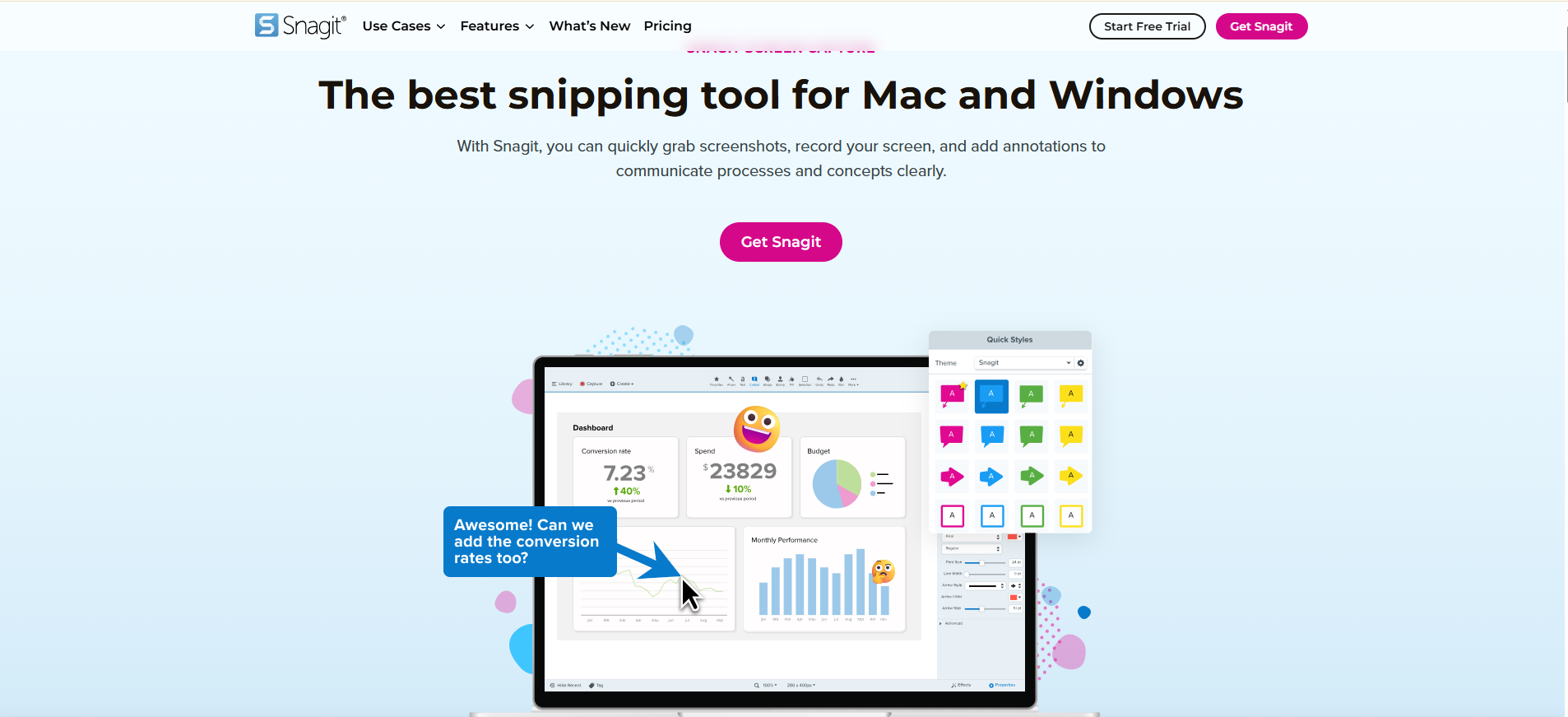
Snagit is the simplest and fastest tool for capturing screenshots + quick screen recordings. Its strength is clarity: annotations, step-by-step guides, arrows, callouts, and drag-and-drop workflows make it perfect for documentation.
AI additions in 2026 include text extraction, smart templates, auto-trimming, and instant caption generation for short clips.
If your workflow involves support tickets, documentation, training materials, or internal instructions, Snagit is one of the best investments you can make.
It’s not built for long recordings or heavy editing, but for daily communication and tech documentation; it’s unmatched in speed and convenience.
Best Screen Recording Software for Advanced Video Editing
Recommended Tool: Camtasia
When it comes to professional-grade editing, no AI screen recorder in 2026 matches the depth, flexibility, and polish offered by Camtasia. It’s designed for creators, educators, trainers, and marketers who need more than basic trimming — they need cinematic control over every frame.
Camtasia combines high-quality screen capture with a full video-editing suite, making it ideal for polishing product demos, tutorials, walkthroughs, and training content. In 2026, the platform will have added even smarter AI enhancements that streamline complex editing tasks without compromising creative control.
Why It’s the Best for Advanced Editing
- Full timeline editor with multi-track layering for audio, screen captures, and camera recordings.
- AI-powered smart editing, including automatic silence removal, noise cleanup, and focus zooms.
- High-end visual effects, motion graphics, cursor enhancements, and transitions.
- Template-based editing, perfect for teams creating consistent how-to or training content.
- Annotations, callouts, and on-screen highlights for step-by-step tutorials.
- Green-screen & advanced audio tools ideal for polished professional results.
Who It’s For
- SaaS demo creators
- YouTube educators
- Corporate trainers
- Course creators
- Marketers producing polished walkthroughs
Bottom line: If you want your screen recordings to look like professionally edited instructional videos, Camtasia is the top choice for 2026.
Best Screen Recording Software for Advanced Recording Tools & Live Streaming
If you need not just screen recording, but flexibility for multi-source inputs, live mixing, and streaming, the tools that shine in 2026 differ significantly from standard editors. For creators who blend webcam, screen, system audio, and live broadcasting (like webinars or live product demos), the ideal pick is OBS Studio, perhaps supplemented by lightweight web-based tools like Veed.io or Tella for rapid post-production edits.
Why OBS Studio leads for live and advanced recording
- OBS lets you capture multiple sources simultaneously, screen, webcam, system audio, custom overlays, and even external video feeds.
- It supports scene switching, layered overlays, and audio mixing, essential for livestreams, tutorials, or hybrid presentations.
- It's open-source and free, so there’s zero barrier to entry. For streaming, webinars, or games, it remains the go-to solution.
That said, OBS lacks deep AI editing tools by default. That’s where tools like Veed.io and Tella come in: after recording, you can upload footage to these platforms to apply automated trimming, captioning, subtitles, and simple edits, without the complexity of a full NLE. Their browser-based, clip-oriented workflows make them ideal when you need speed + flexibility over heavy editing.
Bottom line:
Use OBS Studio when you need raw power, real-time mixing, or live streaming. Use Veed.io or Tella when you want quick, polished edits after recording, especially for social videos, short demos, or team presentations.
Best Screen Recording Software for Screen Capture
When your priority is pure, clean, reliable screen capture, without the heavy editing layers, certain tools rise above the rest because of their simplicity, clarity, and consistency. In 2026, the standout is ShareX, followed closely by lighter, easier tools like ScreenApp or Movavi Screen Recorder AI for users who want a mix of fast capture + AI convenience.
Why ShareX leads for pure screen capture
ShareX remains unbeatable for anyone who needs pixel-perfect screenshots, scrolling capture, region-based recording, and ultra-light screen video capture. It’s fast, open-source, and insanely flexible, especially for developers, educators, and tech reviewers. You get dozens of capture modes without the bloat of editing timelines or complex UI elements.
When to consider ScreenApp or Movavi instead
If you want something simpler, maybe with AI trimming, auto-transcription, or one-click editing, ScreenApp and Movavi Screen Recorder AI offer cleaner interfaces and smarter post-production tools. They’re excellent for quick tutorials, walkthroughs, and “just click and record” workflows.
In short:
ShareX wins for pure screen capture power. For modern, AI-assisted convenience, ScreenApp and Movavi strike a great balance between speed and simplicity.
Best Screen Recorder for Affordable Editing Features
If you care about getting decent quality recordings without breaking the bank, then some of the 2026 crop of tools deliver an impressive mix of ease, editing power, and low cost. These recorders may not have the deep editing power of a full studio, but they make it easy to shoot, trim, annotate, and export clean videos on a budget.
What “Affordable Editing” Means in 2026
- Simple, intuitive interface, no steep learning curve.
- Built-in editing tools like trimming, subtitles, basic effects, and noise cleanup.
- Reasonable pricing: either cheap monthly plans or one-time licenses.
- Good balance between video quality and convenience.
Recommended Budget-Friendly Picks
- Movavi Screen Recorder: Great value for money. It offers screen and audio capture, basic editing tools (trimming, simple effects, noise removal), and straightforward export options. Its lower cost and user-friendly interface make it ideal for freelancers, content creators, educators, or anyone producing how-tos or short tutorials.
- Tella is A modern, web-friendly option ideal when you need speed and simplicity. Its layout and clip-based editing are lightweight but effective. Good for short explainers, social videos, or quick demo walks. Many users appreciate its clean UI and the ease of producing shareable videos quickly.
- Veed.io offers surprisingly capable features even at lower price points: drag-and-drop editing, auto-subtitles, quick trimming, simple overlays, and easy exports. While advanced features may require a paid plan, the balance of convenience and affordability makes Veed a strong pick for social-media creators or marketing teams on a budget.
Who Should Use These Tools
- Freelancers or small teams who need to churn out tutorials, demo recordings, or short-form videos quickly
- Educational content creators or trainers with modest budgets
- Creators producing social media content need fast turnaround and easy publishing
- Anyone who values straightforward workflows over heavy editing features
Bottom line: If you don’t need a cinematic studio-level editor but still want clean, polished output on a budget, tools like Movavi, Tella, or Veed.io strike the best balance. They deliver practical editing and capture capabilities, strong enough for everyday content, without requiring a big budget or high technical skill.
Best Screen Recorder for Automatic Transcription & AI
If your priorities are speed, clarity, and minimal manual editing, especially when dealing with spoken content, the best screen recorders in 2026 focus heavily on automatic transcription, AI cleanup, and intelligent editing features. Two tools stand out above the rest: Descript and Puppydog.io.
Why Descript is Ideal for Transcription-Based Editing
Descript pioneered the idea of editing video like a text document. You record or upload your video, it transcribes the audio, and you can then edit or remove words directly in the transcript. The video follows. With built-in features like auto-transcription, filler-word removal, smart summarization, and automated trimming, Descript turns hours of editing into minutes. That makes it perfect for tutorials, webinars, instructional videos, or any content with heavy narration.
Puppydog.io: Enterprise-Grade AI Automation & Scalability
Puppydog.io takes AI transcription and editing a step further by combining screen recording, script generation, AI avatars or custom voiceovers, demo automation, and multi-format exports into one unified workflow. For teams creating product demos, sales walkthroughs, or training videos at scale, Puppydog simplifies the process: record (or upload), let the AI transcribe and polish, then deploy all with minimal manual intervention.
Best Use-Cases
- Long tutorial or lecture videos that benefit from clean transcripts and auto-editing.
- Rapid production of narrated content: webinars, explainer videos, how-tos.
- Teams needing consistent, branded video output at scale (especially in SaaS sales, training, or marketing).
- Content creators looking to avoid the hassle of manual editing while improving video polish and clarity.
In short: if you want to focus on content, not editing, Descript and Puppydog.io represent the smartest, most time-efficient choices for 2026's AI-driven screen recording era.
Best Screen Recording Software for Mac
Mac users typically expect two things from a screen recorder: smooth performance and an interface that doesn’t get in the way. In 2026, the best options combine Apple-level polish with powerful capture and editing capabilities. The top recommendation for Mac remains ScreenFlow, with Movavi Screen Recorder AI and Puppydog.io serving as strong alternatives depending on workflow needs.
ScreenFlow stands out for its crisp recording quality, reliable system audio capture, and surprisingly capable built-in editor. Its timeline tools, annotations, text overlays, and multi-source recording make it ideal for tutorial creators, educators, and SaaS teams who need polished videos without complicated software.
For those who want a simpler, AI-supported workflow, Movavi Screen Recorder AI offers fast screen capture paired with automated trimming, noise reduction, and lightweight editing tools. It’s easier to learn and perfect for quick how-to videos or simple product demos.
If your focus is product demos, tutorials, or sales content, Puppydog.io adds value with AI-generated scripts, voiceovers, automatic transcription, and video personalization. It fits creators who want to scale content quickly while staying within the Mac ecosystem.
In short, ScreenFlow is the most powerful all-around Mac recorder, Movavi is the easiest, and Puppydog.io is the smartest choice for scalable, AI-driven demo creation.
Choosing the Right Tool: Quick Decision Matrix & Checklist
With so many AI screen recording tools available in 2026, choosing the right one comes down to matching your workflow, your goals, and your editing preferences. Instead of getting overwhelmed, a simple decision matrix can help you narrow things down quickly.
Quick Decision Matrix
- Need automated editing, text-based trimming, and transcripts?
Choose Descript. - Want fast sharing, clean UI, and team collaboration?
Go with Loom. - Creating product demos, sales walk-throughs, or training videos at scale?
Pick Puppydog.io. - Want advanced editing power and professional polish?
Camtasia is the best choice. - Need advanced recording options or live streaming?
Use OBS Studio. - Looking for a simple, easy AI-powered recording with minimal editing?
Movavi Screen Recorder AI or ScreenApp will suit you. - Need premium recording and editing on Mac?
Choose ScreenFlow.
Practical Checklist Before You Decide
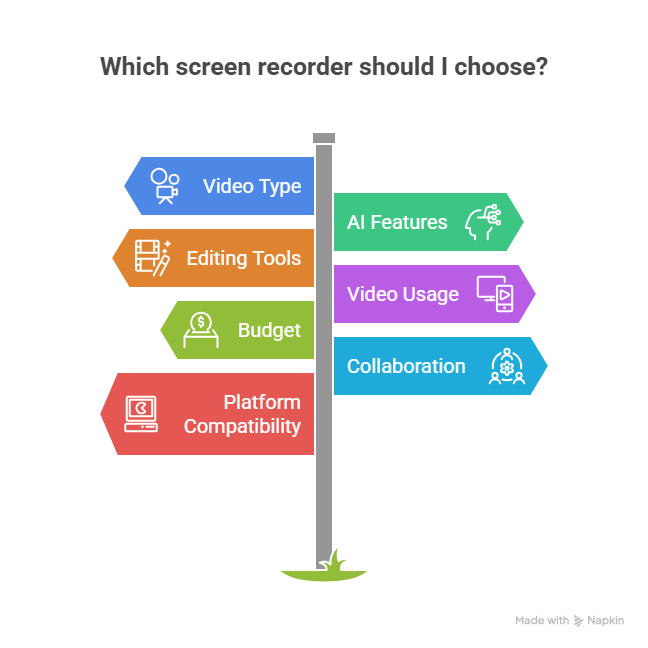
- What type of videos are you creating?
Tutorials, product demos, training, social clips, or long narratives? - Do you need AI features?
Consider whether you want auto-transcription, smart trimming, script generation, or AI voiceovers. - How advanced should your editing tools be?
Simple clip trimming or full-scale timeline editing? - Where will your videos be used?
Internal documentation, customer onboarding, YouTube, marketing, or sales enablement? - What’s your budget?
Free and open-source, one-time payment, or monthly subscription? - Will you collaborate with a team?
Tools like Loom and Puppydog.io offer strong team features. - Which platform do you use?
Windows, Mac, or Web-only workflows can limit your options.
Bottom Line
Choosing the best screen recorder isn’t about finding the “most powerful” tool; it’s about finding the one that fits your daily workflow, your editing style, and the type of content you produce. Use the matrix and checklist above to narrow your choices, and you’ll land on the perfect 2026-ready screen recording solution without the guesswork.
Pricing Models Explained: Subscriptions, AI Credits & Hidden Costs
One of the biggest factors to consider when picking an AI screen recorder in 2026 is how you’ll pay, because the models aren’t all the same. Some tools charge monthly subscriptions, others sell one-time licenses, and a growing number now use AI credits or media minutes tied to resource-heavy features.
Subscription vs One-Time vs Consumption Models
- Subscription plans (e.g., monthly or yearly) give you predictable access to features. Good for frequent creators, teams, or businesses.
- One-time license tools are ideal if you want simplicity and don’t plan on heavy AI usage. This works well for occasional creators or those on tight budgets.
- Consumption-based systems charge per minute of AI processing (transcription, voice-over, dubbing, avatar generation). That means heavy use, like long demos or many personalized videos, can cost much more than you expect.
Common Hidden Costs to Watch For
- Extra fees for AI avatars, voice cloning, or dubbing.
- Additional charges for high-res exports (4K) or for more media minutes beyond plan limits.
- Costs for team seats, collaboration features, or enterprise plugins.
- Renewal or upgrade fees when adding major features or expanding usage.
Tips to Estimate True Cost
- Calculate an approximate monthly usage of minutes (recording, editing, exporting).
- Check how many AI credits or media minutes each tool includes, and what overages cost.
- If you work in a team, factor in per-seat or per-user charges plus collaboration or storage add-ons.
- Try to anticipate future growth, team size, content output, or feature needs, so you don’t get surprised by escalating costs.
Bottom line: The surface price doesn’t always tell the full story. Always read the fine print and calculate expected usage before settling on a tool. Otherwise, your “budget-friendly” solution could quietly become expensive.
Practical Workflows & Templates
The real value of an AI screen recorder shows up when you plug it into a repeatable workflow. Whether you're creating product demos, tutorials, or onboarding videos, having a simple structure saves time and keeps your content consistent. Below are practical workflows and ready-to-use templates you can adapt to almost any tool, from Puppydog.io to Loom, Descript, Camtasia, ScreenFlow, or OBS.
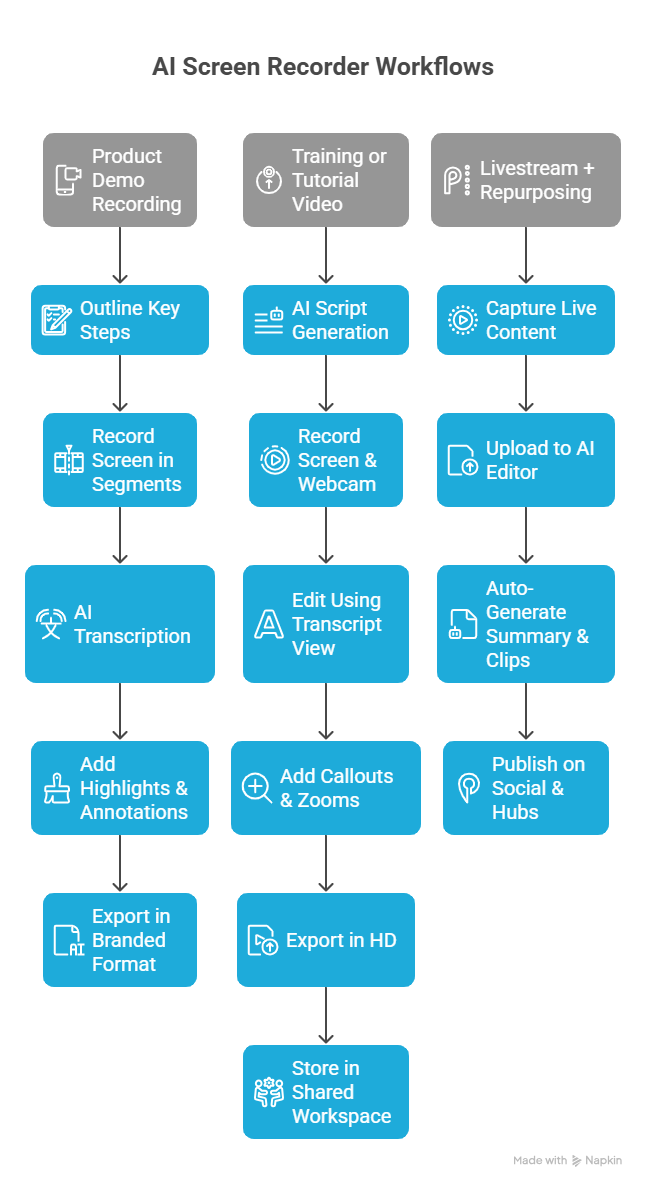
Workflow 1: Product Demo Recording (Great for Puppydog.io, Loom, ScreenApp)
- Outline your key steps: problem → solution → feature walkthrough → call to action.
- Record your screen in short segments instead of one long take.
- Use AI transcription to create captions or a script for voiceover.
- Add highlights or annotations to guide the viewer’s attention.
- Export in a clean, branded format optimized for sharing or embedding.
Template:
- Intro (5–10 sec): “Here’s how to solve X using Y…”
- Step 1: Short clip + annotation
- Step 2: Short clip + voiceover
- Final CTA: “Try it yourself” / “Book a demo.”
Workflow 2: Training or Tutorial Video (Great for Descript, Camtasia, ScreenFlow)
- Start with a written outline or script generated via AI.
- Record your screen and webcam together for added clarity.
- Edit using a transcript view for fast trimming.
- Add callouts, zooms, or text notes for emphasis.
- Export in HD and store in a shared workspace for team use.
Template:
- Problem introduction
- Step-by-step walkthrough
- Recap of key points
- Additional resources
Workflow 3: Livestream + Repurposing (Great for OBS Studio + Veed/Tella)
- Capture high-quality live content using OBS scenes.
- After streaming, upload the recording to an AI editor.
- Auto-generate a summary, highlights, and short clips.
- Publish on social, documentation, or internal training hubs.
Template:
- Live intro
- Screen + webcam demonstration
- Q&A
- Repurposed highlight clips
These workflows keep production simple, consistent, and scalable, especially when combined with AI automation built into today’s top screen recording tools.
Common Pitfalls & Quick Fixes
Even with powerful AI screen recorders, creators often run into the same frustrating issues. The good news? Most of them have simple, quick fixes.
Pitfall 1: Blurry or inconsistent video quality
Often caused by recording at low resolution or moving your cursor too quickly.
Quick fix: Record in 1080p or 4K when possible, slow down your cursor movements, and close any background apps that may affect performance.
Pitfall 2: Poor audio clarity
Background noise, echo, or low mic quality can ruin an otherwise great recording.
Quick fix: Use a USB mic or even your phone as a microphone. Turn on AI noise removal or auto-leveling features found in tools like Descript, Movavi, and Puppydog.io.
Pitfall 3: Long, unfocused recordings
This happens when creators record in one take without planning.
Quick fix: Break your recording into short segments, use a simple outline, and rely on AI transcription to tighten your script during editing.
Pitfall 4: Overusing AI effects
Too many automatic cuts, subtitles, or enhancements can make videos feel unnatural.
Quick fix: Start with minimal edits, then layer features only when they genuinely improve clarity.
Pitfall 5: Heavy file sizes or slow exports
High-quality exports can overwhelm older machines.
Quick fix: Use optimized export presets (1080p at lower bitrates) and consider cloud-based editors for final rendering.
With these small adjustments, your recordings will feel cleaner, sharper, and far more professional, no extra effort required.
Future Trends to Watch
AI screen recording is moving fast, and the next few years will reshape how teams create and share video content. One major shift is real-time AI assistance, tools that can guide you during recording by suggesting clearer phrasing, highlighting important steps, or even generating on-the-spot annotations. We’re also seeing deeper integrations with sales, support, and product analytics platforms, meaning recordings will carry more context, insights, and performance metrics.
Another emerging trend is hyper-personalized video at scale. Instead of one demo for everyone, AI tools like Puppydog.io will create hundreds of tailored walkthroughs automatically, each customized for a specific audience, industry, or use case. Finally, expect better cross-platform capture, cleaner AI-generated voiceovers, and advanced privacy protection features as screen recording becomes a standard part of daily workflows.
In short, the future will be smarter, faster, and far more automated, helping creators focus on clarity and storytelling while AI handles the heavy lifting.
Conclusion & Call to Action
AI screen recording has officially entered a new era. In 2026, the best tools don’t just capture your screen — they help you script, edit, personalize, and publish content with a level of speed and polish that simply wasn’t possible a few years ago. Whether you’re a marketer, educator, founder, or product team, the right recorder can dramatically streamline your workflow and elevate the quality of your videos.
If you want the most advanced automation and demo-focused workflows, explore Puppydog.io. For text-based editing, Descript is unmatched. For collaboration, Loom still leads. And for heavy editing or streaming, Camtasia and OBS remain powerful choices.
Now that you’ve seen what each tool offers, take the next step: choose the recorder that best aligns with your goals, test it with a real project, and start creating smarter, faster, and more polished videos.
Your future workflows will thank you.
FAQs
1. Why choose AI screen recording tools over traditional screen recorders?
AI screen recorders go beyond simple screen capture. They automate time-consuming tasks like transcription, trimming, noise reduction, and even script creation. Instead of spending hours editing manually, AI helps you create polished videos in a fraction of the time. For teams creating demos, tutorials, or training content regularly, the productivity boost is significant.
2. What key AI features should I look for in a screen recording tool?
Look for tools offering automatic transcription, smart trimming, voice recognition, AI annotations, script generation, and video quality enhancement. Depending on your workflow, features like AI-generated voiceovers, content suggestions, and automated editing can save even more time. The best tools blend these capabilities into a smooth, predictable workflow.
3. Can AI screen recorders replace manual video editing?
For many everyday videos, tutorials, demos, explanations, and onboarding, yes, AI can handle up to 80–90% of the editing. However, for highly creative or complex projects, manual editing tools like Camtasia or ScreenFlow still win. AI is best used as a productivity partner, not always a full replacement.
4. Who are AI screen recording tools best suited for?
They’re ideal for product marketers, SaaS teams, educators, customer support teams, freelancers, sales reps, and content creators who regularly produce instructional or demo-style videos. Anyone who values speed, consistency, and clarity can benefit from AI-powered recording.
5. How do I choose the best AI screen recording tool?
Start by identifying your needs: Do you need fast collaboration? Advanced editing? Automation? Or a simple recording with AI enhancements? Compare platform compatibility, pricing, AI features, and the type of videos you create. Our decision matrix above can help you match specific tools, like Puppydog.io, Descript, Loom, or Camtasia- to your exact workflow.

Sarah Thompson is a storyteller at heart and Business Developer at PuppyDog.io. She’s passionate about creating meaningful content that connects people with ideas, especially where technology and creativity meet.